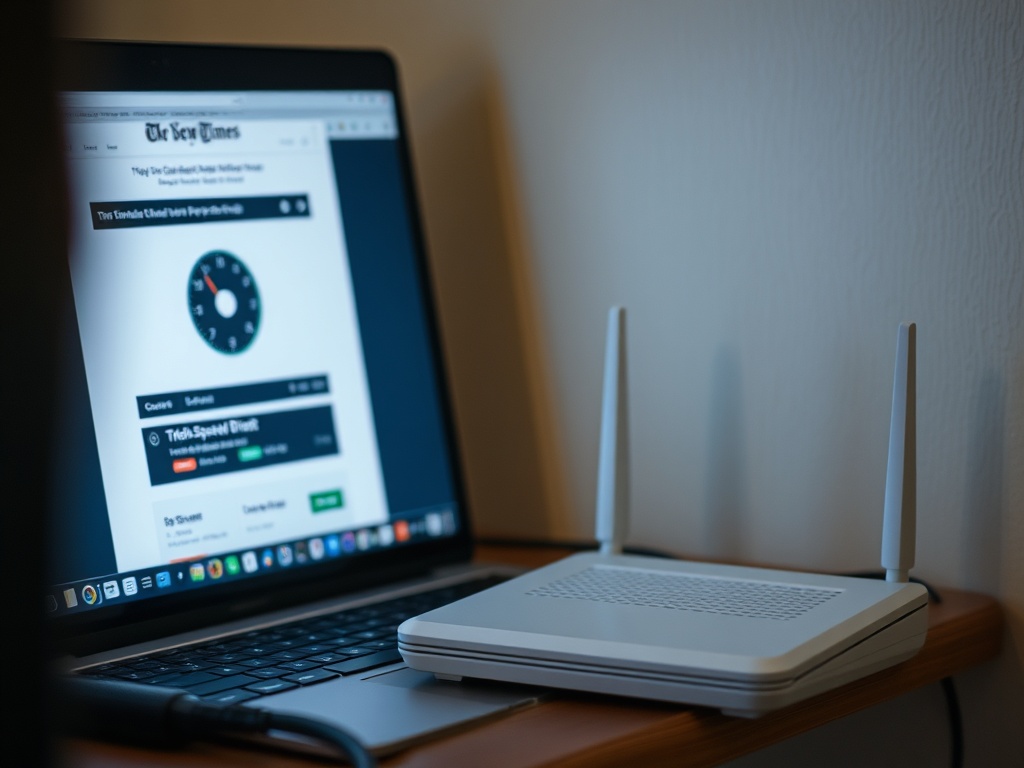

A speed test is useful only when you know what it is measuring. Before upgrading internet service, test with a wired connection, compare multiple devices, check Wi-Fi conditions, and match results to the speeds your household or office actually needs.
Internet speed troubleshooting snapshot
Slow internet is not always an internet plan problem. It can come from Wi-Fi interference, weak router placement, overloaded devices, background syncing, old network hardware, VPN overhead, browser extensions, or a provider issue. A speed test helps only if it is part of a checklist.
The FCC’s Broadband Speed Guide compares typical activities with minimum download speeds, while its Household Broadband Guide helps consumers think about use by household size and device count. Those are guidelines, not guarantees. Your real need depends on simultaneous activity, upload demands, latency, and reliability.
| Symptom | First check | Upgrade only if |
|---|---|---|
| Slow on one laptop | Browser, extensions, Wi-Fi adapter, background apps | Other devices are also slow after testing |
| Slow everywhere on Wi-Fi | Router placement, band, congestion, distance | Wired speeds are also below plan expectations |
| Video calls freeze | Upload speed, latency, router load | Upload is consistently too low for your calls |
| Gaming lag | Latency, packet loss, Wi-Fi stability | Wired latency is poor even off peak |
| Large uploads stall | Upload plan, cloud sync conflicts | Your plan has limited upstream capacity |
Start with a clean baseline
Run the first test close to the router with a device that is not overloaded. Close streaming apps, pause cloud backups, and stop large downloads. Then run a test on Wi-Fi and another with Ethernet if your device supports it. The Ethernet test is important because it separates the provider connection from the Wi-Fi network.
If Ethernet is strong but Wi-Fi is weak, upgrading the internet plan may not help. You may need better router placement, a mesh system, a newer router, or fewer obstructions. If both Ethernet and Wi-Fi are poor across multiple devices, the provider connection, modem, or plan may be the issue.
Understand download, upload, latency, and consistency
Download speed affects streaming, browsing, downloads, and many app updates. Upload speed affects video calls, cloud backups, sending large files, live streaming, and remote work. Latency measures responsiveness, which matters for video calls, gaming, remote desktops, and real-time collaboration. Consistency measures whether the connection stays usable during peak times.
Many users focus only on download numbers because that is what internet plans advertise most loudly. For remote workers, creators, and small businesses, upload speed and stability may matter more. A fast download plan can still feel poor if upload is limited or latency spikes during calls.
If a site loads slowly after a hosting change, do not confuse local internet speed with website performance. The guide to SSL certificates and HTTPS covers secure site setup, while content management workflow mistakes explains how heavy pages and weak publishing habits can hurt site speed.
Check Wi-Fi before blaming the provider
Wi-Fi is often the weak link. Routers placed on the floor, inside cabinets, behind TVs, near microwaves, or at one end of a home can create dead spots. Dense apartment buildings can add channel congestion. Older devices may connect to slower bands. A modern plan cannot overcome every local Wi-Fi problem.
Try these fixes before upgrading:
- Move the router to a central, open location.
- Test both 2.4 GHz and 5 GHz bands if available.
- Restart the modem and router, then retest.
- Update router firmware if the vendor provides a safe update path.
- Remove unused devices from the network.
- Use Ethernet for desktops, consoles, and workstations when possible.
If these steps improve performance, your plan may be fine. If they do not, collect test results before calling the provider.
Compare tests at different times
Run tests morning, afternoon, evening, and late night for two or three days. Also test during the moments when the problem occurs. Slow results only during evening peak hours may point to provider congestion or neighborhood load. Slow results all day may point to equipment, wiring, plan limitations, or a local network issue.
Do not rely on one speed test server. Try two reputable test tools and record the device, connection type, location, time, download, upload, latency, and notes. The pattern matters more than a single number.
Decide what to upgrade first
Upgrade in this order: placement, wiring, router, modem, plan. Placement is free. Ethernet cables are inexpensive. A newer router can improve Wi-Fi coverage and device handling. A modem upgrade may be required for higher plan speeds. The internet plan should come later unless your tests prove the connection itself is consistently too small for your workload.
For a small office, also check switches, old cables, and overloaded access points. One weak network component can make a good service plan feel broken.

Build a simple test log
A test log turns vague frustration into useful evidence. Record the date, time, device, test method, connection type, room location, download speed, upload speed, latency, and what else was happening on the network. Add a short note for symptoms such as buffering, frozen calls, failed uploads, or disconnects. After two or three days, patterns become easier to see.
This log also helps you avoid unnecessary purchases. If wired results are strong but distant Wi-Fi results are poor, buy better Wi-Fi equipment or change placement before paying for a faster plan. If upload drops every evening on a wired test, the provider conversation becomes much clearer.
Warning signs that deserve provider support
Contact your provider when wired tests stay far below the expected range, the modem loses connection, signal lights behave abnormally, outages repeat, or neighbors with the same provider report similar issues. Share your test log. It is easier to get useful support when you can show dates, times, wired results, and affected devices.
Avoid opening the call with “my internet is slow.” Say, “Wired tests from one laptop beside the modem are consistently far below plan speed, with upload drops during video calls.” That gives support a better starting point.
Make the next upgrade count
A speed test should lead to a diagnosis, not a reflex upgrade. Test wired first, check Wi-Fi second, compare devices third, and upgrade only the layer that is failing. Your next step is to run one controlled wired test and one Wi-Fi test near the router, then write down the difference.